X1 Search Version 11 AI Enhancements
AI enhancements in X1 Search are optional and must be enabled for each data source individually on the Data Sources page.
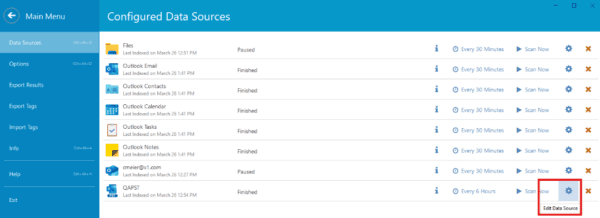
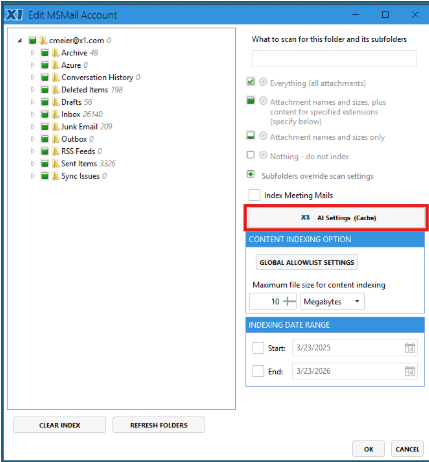
For data sources that support AI processing, select the new AI Settings option.
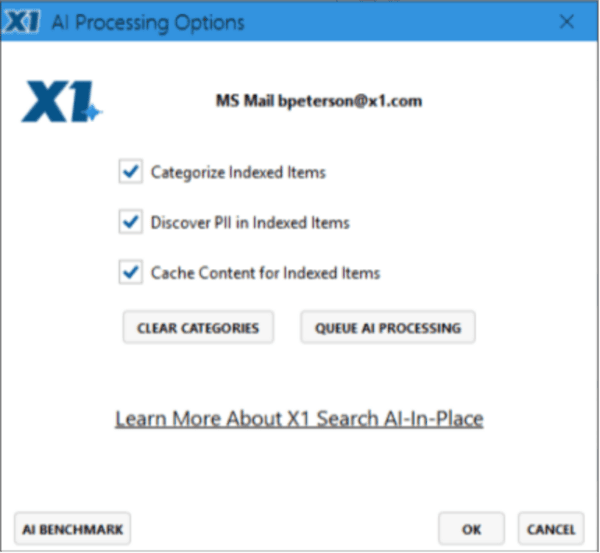
AI Processing Options Dialog
The AI Processing Options Dialog manages AI and Content Caching for the Data Source.
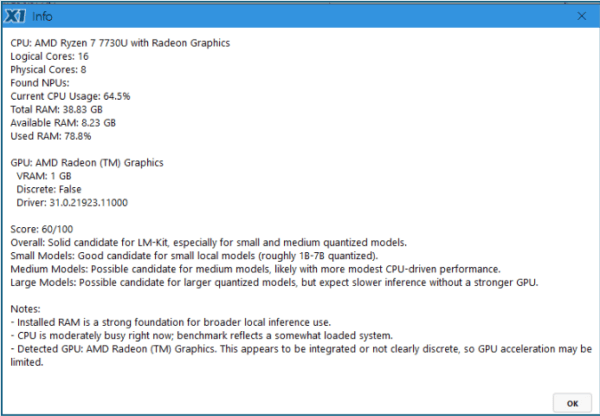
AI Benchmark – Is my computer powerful enough to run the AI Enhancements?
A key advantage of X1’s AI approach is that all AI processing and data handling take place locally on the user’s device. Your data does not leave the endpoint, is not captured by X1 for any purpose, is not used to train or improve models, and chat or prompt histories are not collected or mined. All AI activity operates within the endpoint security controls already in place.
For enterprise environments, administrators can also use Group Policy Objects (GPOs) to prevent users from opting in to AI features.
Because privacy and security are central to X1’s design, all AI computation is performed locally. X1 Search 11 includes a set of lightweight AI models to support these capabilities. However, systems without Nvidia or AMD GPU acceleration may experience reduced performance. In those cases, AI features will still run using the available CPU, but processing may be significantly slower.
To help users understand expected performance, X1 Search 11 includes an AI Benchmark feature. This tool performs a quick assessment of the local system and provides a score indicating the expected experience when using AI features on that computer.
Categorize Indexed Items
Categorization in X1 Search 11 uses local AI models to automatically review content and assign meaningful categories based on the item’s text content. This helps users quickly organize, identify, and prioritize information across their data without requiring manual review of every item.
Categorization is performed locally on the user’s computer, so the content being analyzed does not leave the device. This allows users to benefit from AI-assisted organization while maintaining the privacy and security controls already in place on the system.
Depending on how categorization is configured, X1 Search 11 can evaluate documents, email, and other supported content and apply labels or classifications based on the subject matter, context, or business relevance of the material. This can help users find related content faster, separate important material from low-value information, and support workflows such as investigation, compliance review, and general data organization.
Because categorization relies on local AI processing, performance will vary based on the hardware available on the computer. Systems with stronger processing resources, especially supported by GPU acceleration, will deliver faster results.
Discover PII in Indexed Items
PII identification in X1 Search 11 uses local AI models and pattern-based detection to help identify content that may contain personally identifiable information (PII). This allows users to more quickly locate, review, and manage sensitive information across their indexed data.
PII identification is performed locally on the user’s workstation, so the content being analyzed does not leave the device. This enables users to apply AI-assisted detection while maintaining privacy, security, and endpoint controls already in place.
Depending on configuration, X1 Search 11 can help identify common forms of sensitive information such as Social Security numbers, payment card numbers, bank account information, dates of birth, postal addresses, passport numbers, and other personal data elements. This can support workflows such as privacy review, compliance validation, risk assessment, and remediation of sensitive data exposure.
Because PII identification runs locally, performance will vary depending on the hardware available on the computer. Systems with supported GPU acceleration will provide faster results, while CPU-only systems may require more time to analyze large volumes of content.
Cache Content for Indexed Items
The Content Cache in X1 Search 11 creates a local, compressed cache of extracted item text to improve the speed and efficiency of key product functions. By storing text content in a readily accessible local cache, X1 Search 11 can reduce the need to repeatedly retrieve and reprocess content from original sources during indexing and AI-driven workflows. We recommend enabling the Content Cache in most environments. Disable this option only if available storage is limited on the drive where your X1 indexes are stored.
This helps accelerate operations that depend on item text, including AI-based analysis, categorization, PII identification, and other content-aware functions. It can also improve overall responsiveness when the system needs to access extracted text across large volumes of indexed content.
Because the Content Cache is stored locally, it works within the endpoint and under existing system security controls. The cache is designed to support performance gains while maintaining local control of the stored content.
Since the Content Cache stores compressed extracted text on disk, it does consume local storage. X1 Search 11 includes controls to help users and administrators understand cache status and manage disk usage appropriately.
Queue AI Processing
The Queue AI Processing feature in X1 Search 11 allows users to queue all items in a selected data source for AI processing based on the options currently selected. Once initiated, X1 Search 11 processes the queued items using the enabled AI features, helping users apply AI analysis across an entire data set in a more efficient and consistent way.
Queue AI respects the processing options chosen by the user at the time the action is started. This ensures that only the selected AI capabilities are applied to the queued items.
Because Queue AI may process large volumes of content, completion time will vary depending on the size of the data source, the AI features selected, and the hardware resources available on the system. Systems with supported GPU acceleration will complete queued processing faster than CPU-only systems.
Clear Categories
The Clear Categories feature removes any previously assigned category results from the selected data source. This is useful when you want to reset earlier categorization output before running a new categorization pass.
Users may want to clear categories after changing the category definitions, updating their categorization strategy, or refining the set of categories they want to apply. By clearing prior category assignments first, X1 Search 11 helps ensure that reprocessing reflects the current category of choices rather than mixing old and new results.
This feature affects previously generated category labels only and is intended to prepare the data source for fresh categorization using the latest selected options.
Monitoring AI Job Progress
Progress for AI processing is displayed on the Data Sources page as AI Processed x/n items. This value is updated periodically as processing continues. Completed items can be viewed and used immediately, so you do not need to wait for the entire data source to finish processing before accessing AI enhancements.

AI Processing Options (Global)
To maintain consistency, some AI processing options apply across all data sources. These options can be configured on the Options > AI Processing tab.
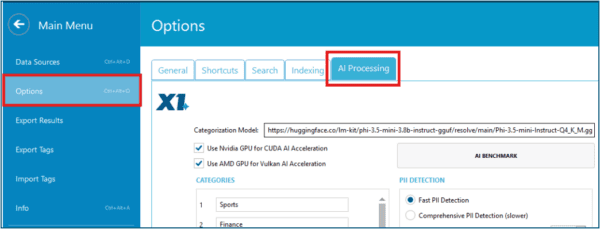
Use Nvidia GPU for CUDA AI Acceleration
Enables X1 Search 11 to use a supported Nvidia GPU for CUDA-based AI acceleration. When available, this can improve performance for AI features compared to CPU-only processing.
Use AMD GPU for Vulkan AI Acceleration
Enables X1 Search 11 to use a supported AMD GPU for Vulkan-based AI acceleration. When available, this can improve performance for AI features compared to CPU-only processing.
Categories

The Category Set defines the user-specified categories that X1 Search 11 will use when performing AI Categorization. These categories are provided by the user and represent the labels the model will assign when it evaluates content.
The categorization model is not pre-trained on your specific category set. Instead, it applies the categories you define at the time of processing. This allows you to tailor categorization to your own business, review, or organizational needs.
The category set can be changed at any time. However, if you update the categories after items have already been processed, X1 recommends clearing the previous category results and requeuing AI processing for the data source. This helps ensure that categorization results remain consistent and reflect only the currently defined category set.
PII Detection
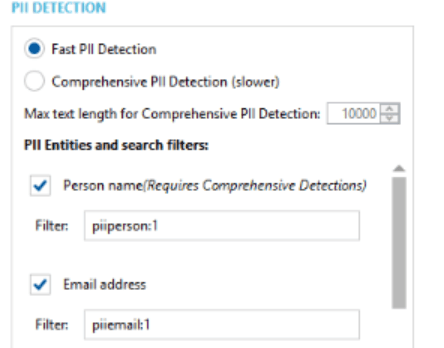
Fast PII Detection
Fast PII Detection is an efficient, pattern-based method for identifying common forms of personally identifiable information (PII). It is designed to deliver faster results with lower system overhead, making it especially useful on computers that may not have the hardware resources needed for more comprehensive AI-based PII detection.
Rather than relying on broader AI analysis, Fast PII Detection uses target detection logic to identify matches for supported PII types. This allows X1 Search 11 to scan content efficiently while still helping users locate sensitive information that may require review.
Fast PII Detection is a practical option for lower-performance systems, CPU-only environments, or situations where speed and efficiency are more important than deeper AI-driven analysis. Users who need more comprehensive PII evaluation may prefer AI-based PII detection when supported hardware is available.
Comprehensive PII Detection
Comprehensive PII Detection combines the speed and efficiency of Fast PII Detection with the broader analysis of AI-based PII detection to provide more complete results. Using both methods together, X1 Search 11 identifies PII through efficient pattern-based scanning and complements those results with AI-driven analysis for additional coverage and context.
The combined results are deduplicated before being presented to the user, helping ensure a more comprehensive view of sensitive information without unnecessary duplication. This approach is designed to give users the benefit of both detection methods in a single workflow, balancing efficient patterns matching with deeper AI-assisted analysis.
Comprehensive PII Detection is best suited for systems with stronger hardware resources, particularly those with supported GPU acceleration. Because it performs both pattern-based and AI-based analysis, it requires more computing resources than Fast PII Detection alone and may take longer to complete on lower-performance systems. For that reason, this option is recommended for more performant computers.
Max Text Length for Comprehensive PII Detection
The Max Text Length for Comprehensive PII Detection setting controls how much text is evaluated when running Comprehensive PII Detection on an item. If the extracted text exceeds the configured limit, X1 Search 11 truncates the content at that point before performing AI-based PII analysis.
This setting helps improve performance by reducing the amount of text that must be processed, especially for large documents or unusually large text extractions. It also helps protect the system from spending excessive time and resources analyzing oversized content that could significantly slow Comprehensive PII Detection.
In general, this option is used to balance depth of analysis with overall system performance. Lower values can improve speed and responsiveness, while higher values allow more text to be reviewed but may increase processing time.
PII Entities and Search Filters
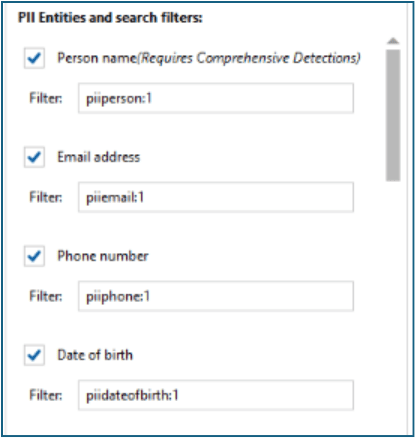
X1 Search 11 allows users to configure which PII entity types are included in PII scanning. These options are enabled by default, but users can turn individual PII types off as needed to better align scanning with their specific requirements.
These settings control which types of PII X1 Search 11 scans for during processing. They do not control which PII fields are displayed in the results grid. Displayed PII columns are managed separately through the column selection options.
Because these settings affect how PII processing is performed, changing them may require AI processing to be requeued for the data source for the updated configuration to be fully applied. For that reason, it is best to leave these settings unchanged unless there is a specific need to tailor which PII types are scanned and you intend to requeue AI processing to implement the change consistently.
AI Categorization
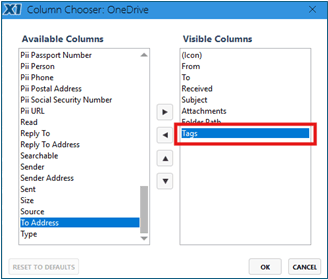
From the main X1 Search Menu, select View on the bottom right corner of the screen and Choose Columns…

Add the Tags column to the visible columns and select OK.
AI Processing
You may initially see the Tags field populated with ToBeProcessed. This is normal and indicates that the item has not yet been processed by AI Categorization. As processing completes, the ToBeProcessed tag is replaced with the assigned category value.
In some cases, an item cannot be categorized. Items with no usable text are tagged NoContent, while items with insufficient text or context to support a reasonable categorization decision are tagged UnCategorized.
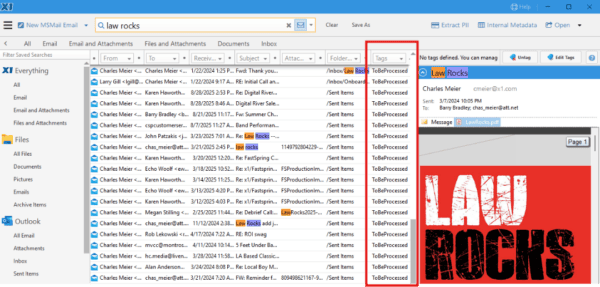
As items complete AI Categorization, their assigned tags can be viewed and interacted with.

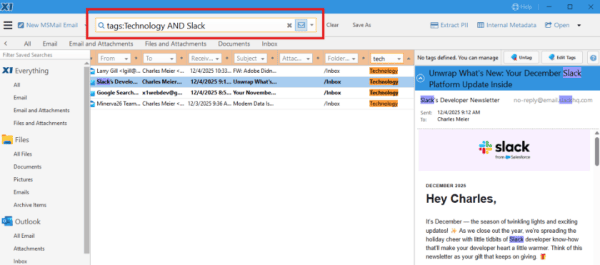
You can filter items by tag by entering the desired tag value in the column filter.

Tag values can be combined with metadata fields and content terms using full Boolean search to refine results quickly. For example, Tags:Technology AND Slack finds items tagged Technology that also contain the work Slack anywhere in the metadata or document content.
Identifying Items with PII
In the main X1 Search menu, select View in the lower-right corner of the screen, then select Columns…

Select the PII columns you want to display, move them to Visible Columns, and then select OK.
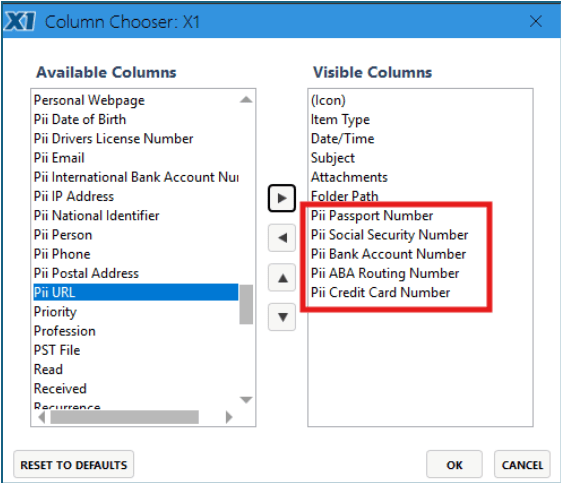
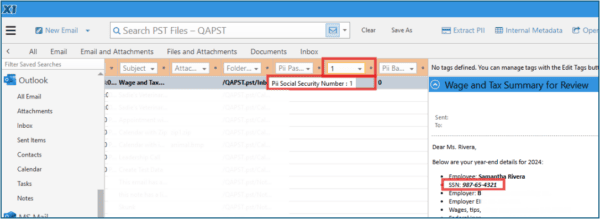
The selected PII columns are added to the display and can be used for sorting and filtering. These columns are binary and display either 0 or 1.

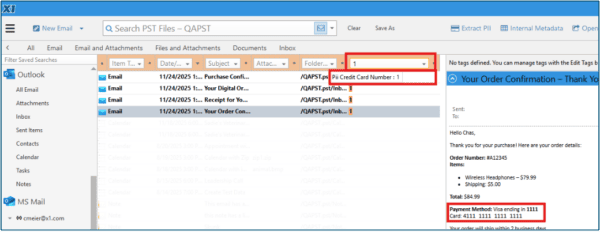
Filter the PII Social Security Number column for a value of 1 to return items identified as containing a Social Security number.
Filter the PII Credit Card Number column for a value of 1 to return items identified as containing a Credit Card number.
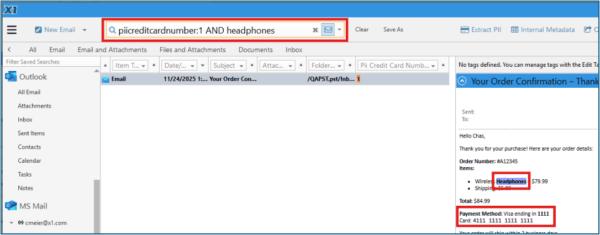
PII columns can be used in full Boolean searches together with other metadata and content terms. For example, PiiCreditCardNumber:1 AND Headphone return items identified as containing a credit card number where the metadata or content also contains the word Headphone.
X1 Search 11 AI Features FAQ
Getting Started
Are AI enhancements enabled automatically in X1 Search 11?
No. AI enhancements are optional and must be enabled separately for each supported data source.
How do I enable AI features for a data source?
On the Data Sources page, select AI Settings for a data source that supports AI processing.
Where do I manage AI and Content Cache settings for a data source?
These settings are managed in the AI Processing Options dialog for the selected data source.
Privacy, Security, and Performance
Does X1 Search 11 send my data to the cloud for AI processing?
No. All AI processing and data handling take place locally on the user’s device. Your data does not leave the endpoint.
Does X1 use my data, prompts, or chat history to train AI models?
No. X1 does not capture user data for training or model improvement, and prompt or chat histories are not collected or mined.
Can administrators prevent users from enabling AI features?
Yes. In enterprise environments, administrators can use Group Policy Objects (GPOs) to prevent users from opting in to AI features.
Do AI features require a GPU?
No. AI features can run on CPU-only systems, but performance may be significantly slower than on systems with supported Nvidia or AMD GPU acceleration.
How can I tell whether my computer is a good fit for AI features?
Use the AI Benchmark feature. It performs a quick local assessment and provides a score indicating the expected AI experience on that computer.
AI Categorization
What does AI Categorization do?
AI Categorization uses local AI models to review item text and assign meaningful categories, helping users organize, identify, and prioritize information more efficiently.
Does categorization process content locally?
Yes. Categorization is performed locally on the user’s computer, so the content being analyzed does not leave the device.
What types of content can be categorized?
Depending on configuration, X1 Search 11 can categorize documents, email, and other supported content based on subject matter, context, or business relevance.
What is the Category Set?
The Category Set is the list of user-defined categories that X1 Search 11 uses during AI Categorization. These are the labels the model applies during processing.
Is the categorization model pre-trained on my categories?
No. The model is not pre-trained on your specific category set. It uses the categories you define at the time of processing.
Can I change the Category Set later?
Yes. The Category Set can be changed at any time.
What should I do if I change the Category Set after processing has already occurred?
For consistency, clear the previous category results and requeue AI processing for the data source. This helps ensure results reflect only the current category set.
What does Clear Categories do?
Clear Categories removes previously assigned category results from the selected data source so it can be reprocessed using the latest category settings.
Viewing Categorization Results
How do I view categorization tags?
From the main X1 Search menu, select View in the lower-right corner, choose Columns…, add the Tags column to the visible columns, and select OK.
Why do some items show the tag ToBeProcessed?
This indicates the item has not yet been processed by AI Categorization. As processing completes, ToBeProcessed is replaced with the assigned category value.
What does NoContent mean?
NoContent means the item does not contain usable text for categorization.
What does UnCategorized mean?
UnCategorized means the item does not contain enough text or context to support a reasonable categorization decision.
Can I use categorization results before the entire data source finishes processing?
Yes. As items complete AI Categorization, their assigned tags can be viewed and used immediately.
How do I filter items by tag?
Enter the desired tag value in the Tags column filter.
Can tags be combined with other search terms?
Yes. Tag values can be combined with metadata fields and content terms using full Boolean search. For example, Tags:Technology AND Slack finds items tagged Technology that also contain the term Slack in metadata or content.
PII Detection
What does PII Detection do?
PII Detection uses local AI models and pattern-based detection to identify content that may contain personally identifiable information, helping users locate, review, and manage sensitive information.
Does PII Detection run locally?
Yes. PII Detection is performed locally on the user’s workstation, so the content being analyzed does not leave the device.
What types of PII can X1 Search 11 identify?
Depending on configuration, X1 Search 11 can identify common forms of sensitive information such as Social Security numbers, payment card numbers, bank account information, dates of birth, postal addresses, passport numbers, and other personal data elements.
What is Fast PII Detection?
Fast PII Detection is an efficient, pattern-based method for identifying common forms of PII. It is designed for faster results with lower system overhead, especially on lower-performance computers.
When should I use Fast PII Detection?
Use Fast PII Detection on lower-performance systems, CPU-only environments, or when speed and efficiency are more important than deeper AI-based analysis.
What is Comprehensive PII Detection?
Comprehensive PII Detection combines Fast PII Detection with AI-based PII analysis to provide broader, deduplicated results that leverage the strengths of both methods.
When should I use Comprehensive PII Detection?
Use it on more performant computers, especially systems with supported GPU acceleration, when more complete PII detection is preferred.
Does Comprehensive PII Detection require more resources than Fast PII Detection?
Yes. Because it performs both pattern-based and AI-based analysis, it uses more computing resources and may take longer on lower-performance systems.
What does Max Text Length for Comprehensive PII Detection control?
It controls how much extracted text is analyzed for each item. If the text exceeds the configured limit, X1 Search 11 truncates it before running AI-based PII analysis.
Why would I lower the Max Text Length setting?
Lower values can improve performance and help prevent large text files from significantly slowing Comprehensive PII Detection.
What do PII Entity settings control?
These settings control which PII entity types X1 Search 11 scans for during processing. They are enabled by default, but individual PII types can be turned off as needed.
Do PII Entity settings control which PII columns are displayed?
No. These settings control what is scanned for, not what is displayed. Displayed PII columns are managed separately through column selection options.
Should I change PII Entity settings often?
No. Changing them may require AI processing to be requeued for the updated configuration to be fully applied, so they are best changed only when you want to tailor PII scanning and reprocess consistently.
Viewing PII Results
How do I display PII columns?
From the main X1 Search menu, select View in the lower-right corner, choose Columns…, move the desired PII columns to Visible Columns, and select OK.
What values appear in PII columns?
PII columns are binary and display either 0 or 1. They can be used for sorting and filtering.
What does a value of 1 mean in a PII column?
A value of 1 indicates the item was identified as containing that type of PII.
Can I search for PII fields with Boolean search?
Yes. PII columns can be combined with metadata and content terms in full Boolean search. For example, PiiCreditCardNumber:1 AND Headphone return items identified as containing a credit card number where the metadata or content also contains the word Headphone.
Content Cache
What is the Content Cache?
The Content Cache creates a local, compressed cache of extracted item text to improve the speed and efficiency of indexing and AI-driven workflows.
Why is the Content Cache useful?
It reduces the need to repeatedly retrieve and reprocess content from original sources, which can accelerate AI analysis, categorization, PII detection, and other text-dependent functions.
Should I enable the Content Cache?
In most environments, yes. It is recommended unless available storage is limited on the drive where your X1 indexes are stored.
Does the Content Cache store data locally?
Yes. The Content Cache is stored locally and operates within existing endpoint security controls.
Does the Content Cache use disk space?
Yes. Because it stores compressed extracted text on disk, it consumes local storage. X1 Search 11 includes controls to help users and administrators understand cache status and manage disk usage.
Queue AI Processing and Progress
What does Queue AI Processing do?
Queue AI Processing queues all items in a selected data source for AI processing based on the options currently selected.
Does Queue AI Processing apply all AI features automatically?
No. It applies only the AI capabilities selected at the time the queue is started.
How long does Queue AI Processing take?
Completion time depends on the size of the data source, the AI features selected, and the hardware resources available on the system. Systems with supported GPU acceleration process queued workloads faster than CPU-only systems.
How do I monitor AI processing progress?
Progress is displayed on the Data Sources page as AI Processed x/n items and is updated periodically as processing continues.
Do I need to wait for the entire data source to finish before using AI results?
No. Completed items can be viewed and used immediately as processing continues.
Global AI Processing Options
Are some AI settings applied across all data sources?
Yes. Some AI processing options apply across all data sources for consistency and are configured on the Options > AI Processing tab.
What does “Use Nvidia GPU for CUDA AI Acceleration” do?
It enables X1 Search 11 to use a supported Nvidia GPU for CUDA-based AI acceleration, which can improve AI performance compared to CPU-only processing.
What does “Use AMD GPU for Vulkan AI Acceleration” do?
It enables X1 Search 11 to use a supported AMD GPU for Vulkan-based AI acceleration, which can improve AI performance compared to CPU-only processing.
For additional resources on X1 Search visit the Help Center, for support inquiries Submit a Case.