Overview
X1 Search Version 12
The X1 Search MCP Connector brings X1’s index-in-place search to supported agentic AI applications through the Model Context Protocol (MCP), enabling secure, natural-language access to your indexed content. X1 searches emails, files, chats, and other supported data sources in-place and returns only what’s relevant to the AI application—keeping your data securely where it resides while dramatically reducing AI token costs.
Now Available:
X1 Search MCP Connector for Claude
Get started with the power of X1 Search plus Claude to enable secure, in-place access to the data you already have in X1 Search.
Why it matters
- Search everywhere, in one query — Ask Claude to search your indexed email, chats, files, Microsoft 365, Google Workspace, and more — all at once, in plain language.
- Cut AI token costs dramatically — X1 finds the right information first and hands Claude only ranked results and targeted snippets. A broad search across a year of email can run about $20 in tokens when raw content is streamed to a model; with X1, that drops to a fraction of a cent.
- Keep data exactly where it lives — Search runs against X1’s local, permission-aware index. Content never leaves your environment unless you explicitly ask for it.
- Fast and reliable at any scale — Local index-in-place search performs the same whether you’re searching thousands of items or millions.
- Included with your X1 Search license — The connector works across all your X1-indexed sources — files, Outlook / MS Mail, SharePoint, OneDrive, Teams, Gmail, and more — on any X1 Search 12+ license, with no add-on or separate entitlement. For organization-wide licensing, contact X1 sales.
How it works
- X1 Search indexes your data in place — no data movement, no duplication.
- Claude connects to X1 securely through MCP.
- Ask Claude a question — it searches your X1-indexed data and hands back the answer, with sources.
Start here — which of these is you?
Choose the option that best describes you:
- I already have X1 Search 12+ — the X1 Search MCP Connector is included with your license and ready to activate. Review What you’ll need below, then continue to Set up.
- I’m deploying X1 Search MCP across my team or organization — The X1 Search MCP Connector is included with every X1 Search 12+ license. For multi-seat or enterprise licensing, contact sales@x1.com.
- I don’t have X1 Search yet — Purchase X1 Search 12+ and get the connector across all your indexed data sources. For organization licensing, contact sales@x1.com.
The X1 Search MCP connector is included with every X1 Search 12+ license, and works across all supported indexed data sources. For X1 Search multi-seat and enterprise licensing contact sales@x1.com.
What you need
- X1 Search 12.0 or higher, installed and running, with at least one completed index scan.
- Some indexed data for Claude to search — set up the sources/collections you want it to reach (for example, files, mail, SharePoint, OneDrive, Teams, etc.).
- Licensing — included with any X1 Search 12+ license, across all sources (files, Outlook / MS Mail, SharePoint, OneDrive, Teams, Gmail, and more). No add-on or separate entitlement.
- Claude — a Claude client running on the same machine as X1: Claude Desktop, Claude Cowork, or Claude Code. (Browser‑only claude.ai can’t reach a local X1 index — see Troubleshooting)
- Same machine — X1 Search must be installed, indexed, and running on the same Windows machine as your Claude client. The connector works with Claude applications noted above including Claude Free, Pro, Max, and Enterprise plans.
Set up the connector
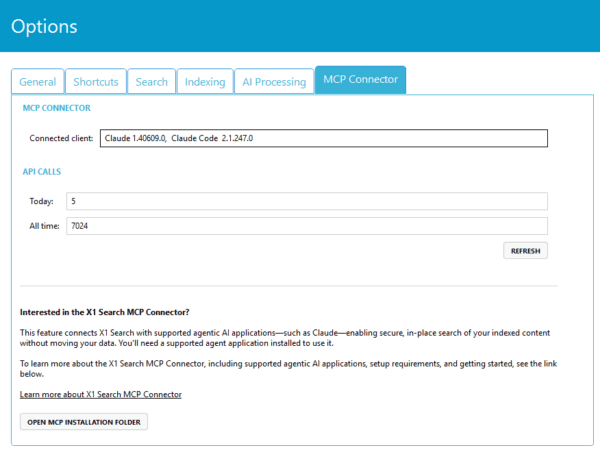
- Install the connector — The X1 Search MCP Connector is included with your X1 Search 12 installation in the MCP Open the folder using the button on the MCP tab, then upload the .mcpb file to Claude (Settings > Connectors/Plugins). The connector remains inactive until it’s uploaded to Claude. Note: If you’re part of a managed organization, your administrator may have already deployed it for you.
- Make sure X1 Search is running.
- Run at least one index scan of the sources you want Claude to reach.
- Fully quit and relaunch Claude so the connector loads.
- Confirm it’s working (three quick checks below).
Confirm it’s working
Ask Claude these three things — if all three work, you’re ready:
- “Which X1 build is serving?”
- “List my X1 sources and their counts.”
- “Search my files for <a word you know exists>.”
Try it
- “Find the most recent contract in my files and preview it.”
- “Search my Outlook mail for messages from <person> about <topic>.”
- “What’s in my SharePoint about <project>?”
- “Tag these documents as ‘review’ and ‘Q3’.”
Best practices
- Keep X1 Search open and running while you using the X1 Search MCP connector.
- Keep your indexes current — run delta index updates to keep search results current as your data changes.
- If Claude no longer detects X1 Search, fully quit and relaunch X1 Search to re-establish the connection.
Additional connectors
X1 Search MCP is built on an open standard, so it can extend to new AI platforms and new data sources over time. Now available: the Microsoft Contacts Connector, which brings M365 contacts into your X1 index — and more sources are on the way.
Now Available:
Microsoft Contacts Connector
The X1 Search Microsoft Contacts Connector indexes Microsoft 365 contacts directly through the Graph API — no Outlook installation required — making contact details searchable alongside your other X1 sources.
- Indexes without Outlook — connects directly to Microsoft 365 through the Graph API, so your contacts are indexed even when Outlook is not installed.
- Rich, searchable fields — names, email addresses, phone numbers, job titles, and company details become searchable alongside your other X1 sources — and available to the X1 Search MCP for AI-driven retrieval.
FAQ & troubleshooting
- Claude can’t see X1 / “service host not running.” Start X1 Search and make sure it’s running.
- A search came back empty or missed something. The index may be stale or that source hasn’t been scanned — run a scan.
- Claude only sees some of my sources — where are the rest? Those sources may not be indexed yet. Set up and run an index scan for the sources you want Claude to reach (mail, SharePoint, OneDrive, Teams, Gmail, etc.), then try again.
- Why can’t I search from claude.ai* in my browser? Claude ai’s browser experience connects through a local Claude Desktop relay, so it can’t reach an X1 index running on a different machine — this is a deliberate security boundary, not a bug. Use Claude Desktop, Claude Code, or Cowork on the same machine as X1 Search instead.
- Full-text retrieval feels slow. Searches come straight from the index. When Claude asks for the full text of specific items, X1 either serves it from the per-source content cache (if enabled) or extracts it on the fly and discards it. Enabling content caching on a source speeds up repeated full-text retrieval; it isn’t needed for search.
- Reporting a problem. Include what you asked, what happened, and the connector version (ask Claude “which X1 build is serving?”).
Ready to bring enterprise search to Claude?
To learn more about integrating the X1 Search Connector for Claude across your organization and reducing AI token costs, contact us.
Stay up to date
To keep up with the latest X1 Search capabilities, visit x1.com/solutions/x1-search or and help.x1search.com/home. For X1 Search support inquiries Submit a Case.